Time to use passkeys!
For 15 years, experts have told me that passwords are the biggest problem with online security and that’s just the way it is. The passwords that people make up are easily guessed by machines, and the ones that can’t be guessed are too hard to remember.
Over time, as more and more passwords became necessary, many people simply recycled theirs across different accounts — creating a precarious situation where one phished password or data breach gave an attacker access to the victims’ email, bank accounts, and anything else that shared that password.
Then came password managers, services and software in which a person could safely store all of their complex passwords and thus need to remember only a single password: the password for their password manager. This technology addressed, but didn’t solve, some of the difficulties. If people put in the effort, they could eventually have unique and complex passwords everywhere. But the majority of people did not opt to take on this herculean task that brought no immediate reward except that (maybe) in the future something bad might not happen to them (possibly). And a smart attacker could just phish even the best passwords anyway.
Two-factor authentication was the next bandage on the gaping wound of passwords. With 2FA protecting you, an attacker could have your password but wouldn’t be able to use it without a second confirmation, such as a code generated by an app or sent by text message. But another hoop to jump through for logging in remains a hard sell. And a smart attacker could just (you guessed it) phish most forms of 2FA anyway.
But passkeys are different. Instead of trying to fix unfixable passwords, passkeys are an entirely new technology that securely logs you in without your needing to remember your password or to perform a 2FA ritual. Passkeys are not perfect, and we’re still a ways off from their being commonplace, but learning what a passkey is and how to use it moves you a little closer to a more secure future.
What is a passkey?
A passkey is, essentially, a digital key that “unlocks” your online account by securely logging you in without a password. In Tamora Pierce’s fantasy novel First Test, knight student Kel acquires a lock for her room that opens only when she speaks a magic word while turning an equally magical key. This is, in high-fantasy terms, a passkey: It works on only one door, it can’t be duplicated, and it works only when the owner allows it to do so with a magic word.
When you have a passkey, your device, instead of prompting you to type in your password, automatically finds your passkey and asks your permission to use it. You then authenticate it with a PIN, facial recognition, or a fingerprint scan, and only then does it log you in to your account.
“A passkey is like a super-long password that you can’t copy-paste, but that your computer and phone can use to log in to a website quicker and more safely than a password,” said Jacob Hoffman-Andrews, a senior staff technologist at the Electronic Frontier Foundation.
Passkeys can’t be forgotten, unlike passwords. Passkeys are bound to specific websites, so there’s no risk of their being used on a phishing site or being sent to a savvy scammer. And unlike passwords, they can’t be exposed if the site where you have an account has a data breach.
“In a world where AI can mimic voices and generate flawless phishing emails at scale, passkeys are the most critical defence we have to prevent credential theft,” said Derek Hanson, chief technology officer for Yubico, the maker of Wirecutter’s favourite security keys and a major force behind the creation of passkeys.
Build your virtual keychain
The first thing you need to create a passkey is to figure out where to store it.
You can create a passkey in a few places: on your device, in a password manager, or on a physical piece of hardware called a security key. Regardless of where you store your passkeys, they’re secured with end-to-end encryption. As a result, Apple, Google, Microsoft, and your password manager don’t have the means to decrypt them. Only the devices that you authorize can access your passkeys.
You may have seen some of the biggest sites on the internet — such as Amazon, Google, and PayPal — prompt you to create passkeys. And the reason is that many of the biggest tech companies actively support them. Apple, Google, and Microsoft all back passkeys, and their devices are set up to create, store, and use passkeys. If you’re just starting out with passkeys, we recommend using whatever the default option is on your device.
The passkeys you create can automatically sync between devices to be more available to you — but that feature is limited by where you store your passkeys. Passkeys made on iPhones, iPads, and Macs are saved to the Apple Passwords app and automatically sync between devices where you’re logged in with your Apple ID. Android devices, Chromebooks, and the Chrome browser save your passkeys to the Google Password Manager and sync similarly. Windows also has built-in support for creating and storing passkeys and syncs your passkeys between Windows devices where you’re logged in with your Microsoft account.
You can also choose to store your passkeys in password managers. Passkeys stored in password managers such as 1Password sync to the apps and browser extensions, making them available no matter what device you’re using. If you store passkeys in your password manager, secure your password manager account with a complex, unique password and enable 2FA.
If you don’t like the idea of your passkeys floating around in the cloud between your devices, you can store them offline on a hardware security key.
But remember that if you lose your physical security key, you lose all of its passkeys as well. If you go this route, you should create backup passkeys for your accounts and store them on a second, backup security key that you keep in a safe place.
Unlocking sites with a passkey
You can use passkeys only on sites that support them. The FIDO Alliance, the industry group that developed the core technology for passkeys, has a searchable list of sites that use passkeys, which is a good place to start. But you are likely to see a prompt pop up on any of the major online services and retailers that are now using passkeys.
The passkey experience differs slightly depending on the device you’re using and the site you’re logging in to.
Some websites, like Amazon, will prompt you to create a passkey. On a phone, tap Add Passkey and authenticate using the same method you use to unlock your phone (in my case, with Face ID). That’s it — your phone has created a unique passkey for Amazon and securely saved it.
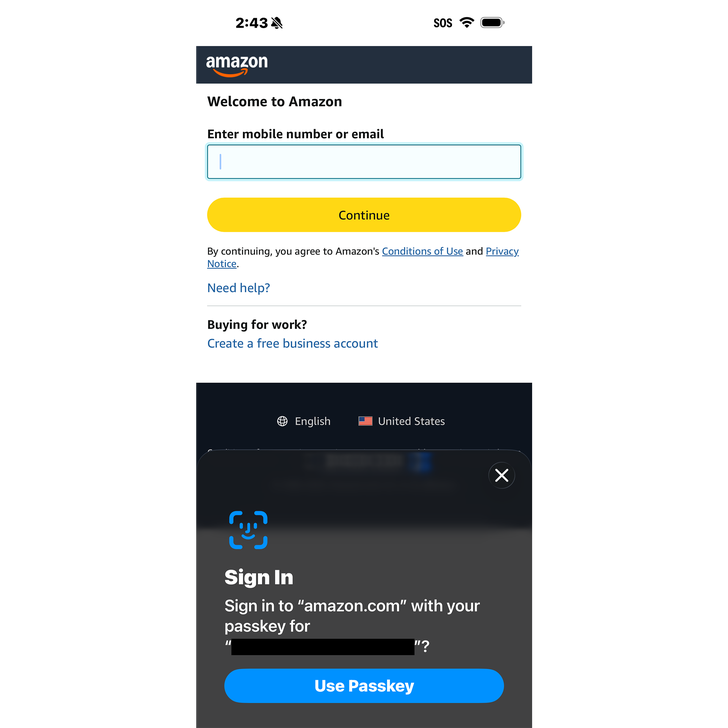
The next time you log in to Amazon, your phone will recognize that you have a passkey and ask to use it. (On desktop computers, you may have to enter your username before you can use a passkey.) Tap the button to confirm and authorize with biometrics or a PIN, and you’re logged in. No password, no problem.
You can also use a device with a passkey to log in to a website on a different device where you don’t have a passkey. After navigating to Amazon’s website on a laptop, for example, enter your username and then choose the option to use a passkey. The browser will display a QR code that you scan with your iPhone, which in turn triggers a request to use a passkey. Tap to confirm, perform a quick Face ID scan, and that’s it: You’re logged in. Note that both devices must have Bluetooth enabled, but you don’t need to pair them.
An important detail: When you use a passkey on one device (like your phone) to authenticate a different device (such as your laptop), the passkey isn’t transferred from one to the other. If you plan on logging in again on the laptop in the future, you might want to create a new passkey specifically for the laptop.
The disadvantages of passkeys
The greatest obstacle to passkey adoption may end up being exhaustion. It’s yet another thing that’s being asked of you to keep your accounts safe.
“Security fatigue is real,” Hoffman-Andrews said.
Passkeys are still in their early-adoption phase, and it can be hard to find sites that support them. So for the foreseeable future, you’ll need to continue using password managers and enabling 2FA wherever possible. Meanwhile, some sites that do use passkeys still rely on passwords and 2FA, which clever attackers can obtain through phishing, as backups.
And while passkeys are intended to be more convenient than passwords, that’s not entirely the case at the moment. Some sites don’t require 2FA for passkey logins, and others do; some sites let you create as many passkeys as you like for an account, while others limit you to just one. Logging in to the same site on an iPhone doesn’t work quite the same as it does on Android. These are little things, but they create more confusion for people still unfamiliar with the technology.
I’ve also found that it can be tricky to remember where I’ve created my passkey, which sometimes means I simply don’t know what device to use to log in. It’s not currently possible to transfer passkeys between different types of devices, which is annoying, but Hoffman-Andrews explained that this limitation also helps keep passkeys safe from phishing attacks.
Although passkeys are stored with end-to-end encryption, which prevents both providers and third parties from accessing or examining them, they’re not entirely in your control when you store them on third-party cloud services like those of Apple and Google.
“It is technically possible that a compromised cloud account — or a legal subpoena directed at the cloud provider — could impact the security or privacy of those synced credentials,” said Hanson.
If someone steals your phone, or confiscates your laptop, or gains access to the account that manages your passkeys, they might be able to access those passkeys. That’s why you should never reveal your PIN to anyone. You should also enable manufacturer tools to protect lost devices and learn how to deactivate fingerprint login or facial recognition on devices. People with elevated risk, such as journalists, activists, and politicians, should consider using hardware security keys to store their passkeys.
The bottom line: Use passkeys when you can
Password phishing, data breaches, two-factor authentication, and increasingly lengthy strings of mixed-case alphanumeric nonsense phrases may soon be relics of our password past — just not yet.
We recommend that you create a passkey on any site that allows it. If you’ve previously dismissed the option to create a passkey, or if you aren’t sure whether a site supports them, there are a few places to look. On the login page, look for the option to create or use a passkey. You should also check the security options in your account settings page for information on passkeys. On Amazon, for instance, go to Your Account > Login & Security > Passkey.
Although passkeys haven’t won out against passwords, “that doesn’t mean the users won’t benefit from them today where they are already available,” Hanson said.
Every passkey you create makes your accounts, and your online life, a little safer. And someday, the magic of passkeys will be so commonplace, you won’t be able to imagine life without them.